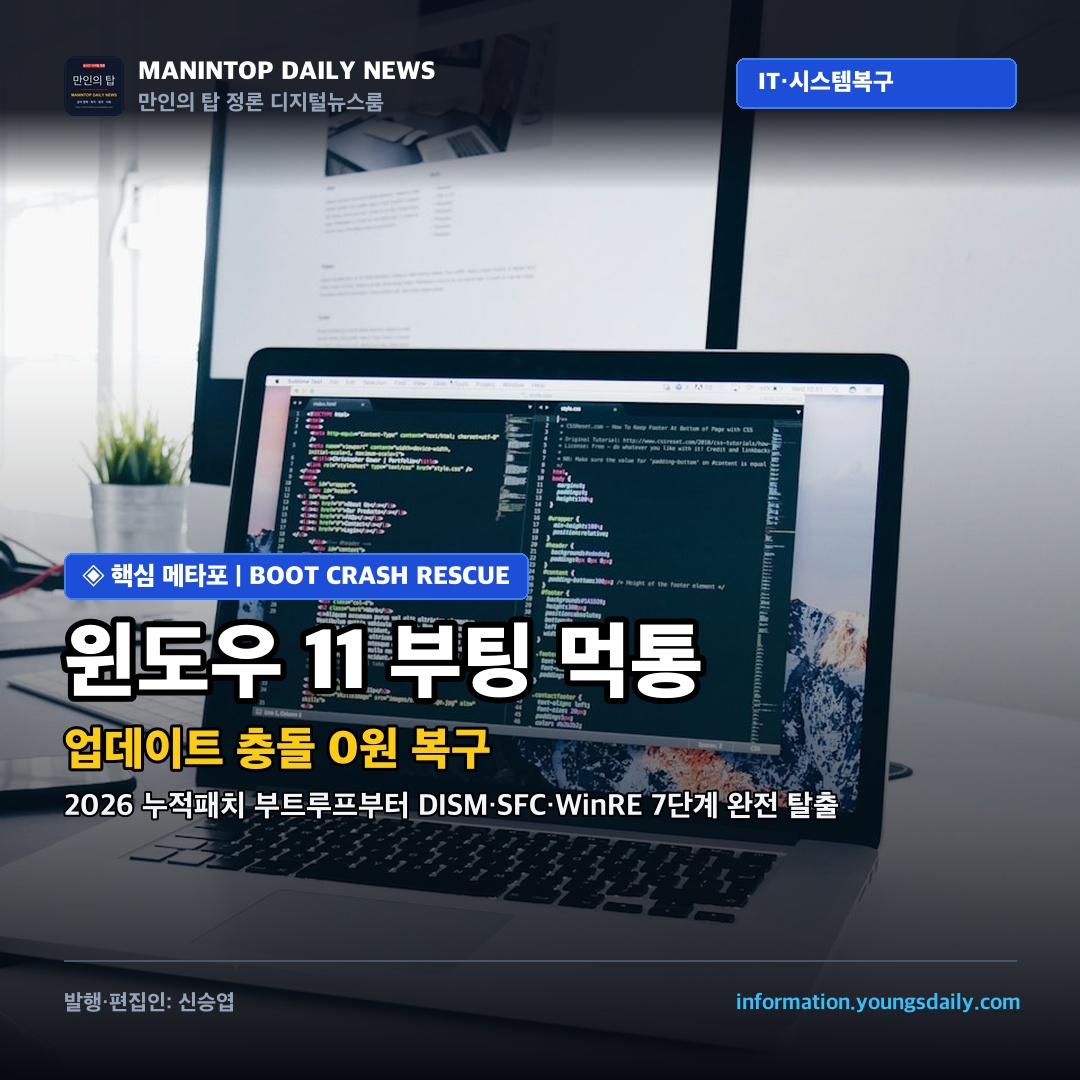
[IT·소프트웨어] "윈도우 11 업데이트 후 부팅 먹통"… 무한 부트루프·블랙스크린 7단계 긴급 복구 총정리
만인의 탑 편집국11월 12, 2026
▲ [IT·소프트웨어] "윈도우 11 업데이트 후 부팅 먹통"… 무한 부트루프·블랙스크린 7단계 긴급 복구 총정리 (공식 보도 자료)
📌 핵심 브리핑 · 주요 쟁점 및 핵심 요약
[IT·소프트웨어] "윈도우 11 업데이트 후 부팅 먹통" 현상으로 불편을 겪는 컴퓨터 이용자들이 전 세계적으로 급증하고 있습니다. 정기 보안 패치와 기능 개선을 위해 배포된 윈도우 11 최신 누적 업데이트(KB5074109, KB5094126 등)가 특정 하드웨어 및 OEM 파티션 구조와 충돌을 일으키며 윈도우 로고 화면에서 멈추거나 무한 재부팅 루프에 빠지는 심각한 시스템 장애가 연이어 발생했기 때문입니다. 특히 윈도우 11 24H2 이상 버전부터는 기존의 파란색 화면 대신 검은색 배경의 블랙스크린(Black Screen)으로 표출되어 당혹감을 더하고 있습니다. 많은 사용자가 부팅이 안 되면 하드디스크가 망가진 줄 알고 무작정 윈도우를 포맷하거나 유상 출장 수리를 부르곤 합니다. 하지만 마이크로소프트의 공식 분석 데이터에 따르면 시스템 크래시의 70%는 부품 고장이 아닌 서드파티 드라이버와 패치 충돌에서 비롯됩니다. 데이터 손실 없이 집에서 혼자 10분 만에 윈도우 부팅을 완벽히 되살리는 7단계 긴급 탈출 프로토콜을 알기 쉽게 정리해 드립니다.
SPONSORED · ADVERTISEMENT
1. 2026년 윈도우 11 업데이트 발 부팅 대란: KB 패치 충돌과 블랙스크린의 진실
최근 컴퓨터를 켜면 윈도우 로고에서 무한히 회전만 반복되거나 화면이 먹통으로 변하는 부팅 대란이 빈번하게 보고되고 있습니다. 마이크로소프트(MS) 공식 발표에 따르면, 2026년 상반기에 배포된 주요 윈도우 11 누적 보안 패치들이 특정 시스템 환경에서 연쇄적인 부팅 실패를 일으켰습니다. 1월 배포된 KB5074109 업데이트에서는 부팅 볼륨이 손상되며 'UNMOUNTABLEBOOTVOLUME(0xED)' 오류가 터져 나왔고, 2월의 KB5077181 패치에서는 보안 부팅(Secure Boot) 키 충돌로 무한 부트루프가 발생했습니다.
특히 6월 배포된 대규모 업데이트(KB5094126)의 경우 HP와 Dell 등 유명 대기업 완제품 PC에서 부팅 불가(0xc0430001) 사고가 집중적으로 발생했습니다. 기술 분석 결과, 기존 구형 시스템에 100MB 크기로 작게 설정되어 있던 EFI 시스템 파티션(ESP)이 화근이었습니다. 대규모 보안 부팅 패치가 적용되는 과정에서 파티션 내부의 저장 공간이 부족해 부팅 파일 갱신이 불완전하게 중단되었기 때문입니다. 이는 개인 데이터가 지워진 것이 아니라 부팅 길목의 파일이 꼬인 상태이므로, 복구 환경을 통해 충분히 되살릴 수 있습니다.
또한 많은 이용자들이 윈도우 11 버전 24H2 이상부터 오류 화면이 파란색이 아니라 '검은색(Black Screen)'으로 나타나 해킹을 당한 것인지 불안해합니다. 하지만 이는 마이크로소프트가 최신 윈도우의 디자인 미학에 맞춰 기본 배경 색상만 검은색으로 바꾼 것일 뿐, 내부적인 동작 메커니즘과 정지 코드(Stop Code), 진단 절차는 기존 블루스크린(BSOD)과 100% 동일합니다.
▲ 관리자 권한 명령 프롬프트를 통한 BCD 부트 레코드 재구성 및 시스템 무결성 점검 화면
2. 마이크로소프트 텔레메트리 분석: 크래시 원인의 70%는 드라이버 결함
컴퓨터가 멈추거나 블루스크린이 뜨면 대다수 사람들은 CPU, 램(RAM), 메인보드 같은 값비싼 부품이 망가졌다고 지레짐작합니다. 하지만 마이크로소프트가 수억 대의 PC에서 수집된 공식 텔레메트리 데이터를 분석한 결과는 전혀 다릅니다.
윈도우 환경에서 발생하는 전체 시스템 크래시 중 무려 70%는 '서드파티 드라이버 결함 및 충돌'에서 비롯됩니다. 그래픽 카드, 사운드, 네트워크 칩셋 등 외부 제조사가 만든 장치 드라이버가 윈도우 커널과 엇박자를 낼 때 발생하는 것입니다. 이어 메모리 손상으로 분석이 불가능한 경우가 15%, 실제 물리적인 하드웨어 고장은 10%에 불과하며, 윈도우 자체 코드 결함은 5%에 그칩니다. 즉, 10대 중 9대는 부품 교체 없이 소프트웨어적인 조치만으로 고칠 수 있다는 뜻입니다.
실제 화면에 표시되는 정지 코드만 잘 읽어도 원인을 쉽게 좁힐 수 있습니다. 'CRITICALPROCESSDIED(0xEF)'는 윈도우 핵심 파일 손상, 'MEMORY_MANAGEMENT(0x1A)'는 램 오버클럭이나 드라이버 오작동, 'DRIVER_IRQL_NOT_LESS_OR_EQUAL(0xD1)'은 그래픽이나 무선 랜 드라이버 충돌이 주원인입니다. 만약 화면이 너무 빨리 꺼져서 코드를 못 봤다면, '고급 시스템 설정'의 시작 및 복구에서 '자동으로 다시 시작'을 꺼두거나, 재부팅 후 무료 도구인 BlueScreenView를 통해 덤프 파일(C:\Windows\Minidump)을 열어보면 'nvlddmkm.sys(엔비디아)'나 'ntoskrnl.exe'처럼 문제를 일으킨 파일명을 단번에 찾아낼 수 있습니다.
구분 유형
지원 및 적용 대상
환급 및 해결 기준
신청 및 조치 방법
CRITICALPROCESSDIED (0xEF)
윈도우 핵심 프로세스 중지
필수 시스템 파일 손상 및 서비스 예기치 않은 종료
관리자 CMD에서 'DISM /RestoreHealth' 선행 후 'sfc /scannow' 실행
MEMORY_MANAGEMENT (0x1A)
메모리 관리자 충돌
물리적 RAM 불량, Realtek 오디오 충돌, XMP 오버클럭
XMP/EXPO 해제, 램 골드핑거 지우개 청소, 오디오 드라이버 롤백
PAGEFAULTIN_NONPAGED (0x50)
비페이징 메모리 주소 오류
타사 드라이버의 잘못된 참조 또는 디스크 파일 시스템 손상
관리자 CMD에서 'chkdsk C: /f /r /x' 디스크 검사 수행
DRIVERIRQLNOT_LESS (0xD1)
인터럽트 주소 침범
그래픽·네트워크 등 서드파티 드라이버의 커널 메모리 침범
안전 모드 부팅 후 최근 설치된 그래픽/랜 드라이버 롤백
INACCESSIBLEBOOTDEVICE (0x7B)
부팅 파티션 인식 불가
SATA 모드(AHCI/RAID) 불일치 또는 BCD 부팅 섹터 손상
WinRE 명령 프롬프트에서 'bootrec /rebuildbcd' 실행
DPCWATCHDOGVIOLATION (0x133)
DPC 타이머 지연 초과
Windows 24H2 업데이트 충돌 또는 스토리지 컨트롤러 결함
24H2 이전 빌드 롤백 및 SSD 컨트롤러 최신 펌웨어 업데이트
UNMOUNTABLEBOOTVOLUME (0xED)
부팅 볼륨 마운트 실패
KB5074109 등 누적 업데이트로 인한 부트 파티션 손상
WinRE 진입 후 최신 품질 업데이트 제거 및 시작 복구 실행
SPONSORED · ADVERTISEMENT
3. 부팅 불가 긴급 탈출 7단계: 그래픽 리셋 단축키부터 WinRE 롤백과 DISM·SFC까지
컴퓨터가 부팅되지 않거나 검은 화면에서 멈췄을 때 순서대로 따라 할 수 있는 7단계 긴급 자가 복구 프로토콜을 제시합니다. 1단계는 '골든타임 1분 그래픽 리셋'입니다. 화면은 까맣게 멈췄는데 마우스 커서만 움직인다면 윈도우가 아니라 그래픽 드라이버가 멈춘 것입니다. 이때 키보드에서 'Win + Ctrl + Shift + B'를 동시에 누르면 '삐' 소리와 함께 화면이 깜빡이며 그래픽 서브시스템이 1초 만에 강제 재시작되어 정상 화면으로 복귀합니다. 2단계는 'WinRE 복구 환경 강제 호출'입니다. 정상 부팅이 안 될 때 본체 전원을 켜고 로고가 뜨자마자 전원 버튼을 5초간 꾹 눌러 끕니다. 이 과정을 연속 3회 반복하면 윈도우가 부팅 실패를 감지하고 '자동 복구 준비 중' 파란색 WinRE 화면을 띄웁니다.
3단계는 '문제의 누적 업데이트 롤백'입니다. WinRE의 [문제 해결] → [고급 옵션] → [업데이트 제거]로 들어가 '최신 품질 업데이트 제거'를 클릭하면 직전에 설치되어 부팅을 막던 충돌 패치가 깨끗이 삭제됩니다. 4단계는 '시스템 파일 수리'로, 고급 옵션의 명령 프롬프트에서 'DISM /Online /Cleanup-Image /RestoreHealth'를 먼저 실행해 원본 이미지를 고친 뒤 'sfc /scannow'를 실행하는 황금 순서를 지켜야 합니다. 5단계는 부팅 영역이 깨졌을 때 'bootrec /rebuildbcd' 명령으로 부트 레코드를 재구성하는 것입니다. 6단계는 안전 모드 진입(시작 설정 4번)으로 불량 드라이버를 삭제하는 것이며, 최후의 7단계는 윈도우 설정의 'Windows 업데이트로 문제 해결(지금 다시 설치)'을 통해 개인 파일과 프로그램을 100% 보존하면서 운영체제 코어만 새것으로 덮어씌우는 복구 설치입니다.
▲ 사이버 보안 시스템 및 커널 레벨 드라이버 충돌 모니터링 시뮬레이션 자료
4. 노트북 전원(ACPI) 드라이버 재정렬과 재발 방지 필수 체크리스트 5선
데스크톱과 달리 노트북 환경은 독자적인 전원 관리 프로파일(ACPI)과 하드웨어 제어 프로그램이 복잡하게 얽혀 있어 드라이버 업데이트에 훨씬 민감합니다. 윈도우 업데이트가 임의로 범용 드라이버를 덮어쓰면, 절전 모드에서 깨어날 때 화면이 먹통이 되거나 USB-C 독을 꽂았을 때 시스템이 멈추고 발열과 팬 소음이 치솟는 증상이 발생합니다.
이를 해결하려면 제조사(OEM) 공식 홈페이지에서 전용 드라이버를 내려받아 '칩셋 → 전원/ACPI → 그래픽 → 오디오 → 무선 랜' 순서로 정렬하여 재설치해야 합니다. 또한 윈도우 업데이트가 멋대로 드라이버를 다시 덮어쓰지 못하도록 막아야 합니다. 'sysdm.cpl(시스템 속성)' 실행 후 하드웨어 탭의 [장치 설치 설정]에서 자동 다운로드를 '아니요'로 바꿔두면 드라이버 충돌의 90% 이상을 예방할 수 있습니다.
마지막으로 향후 동일한 부팅 장애를 막기 위한 5대 필수 수칙을 기억해야 합니다. 첫째, 주요 업데이트 전 복원 지점 수동 생성 습관화입니다. 둘째, 누적 업데이트가 배포되자마자 깔지 말고 2~3주간 '업데이트 일시 중지'를 걸어 전 세계적인 안정성을 확인한 뒤 설치하는 지연 전략입니다. 셋째, 암호화 복구에 필요한 BitLocker 48자리 복구 키를 스마트폰이나 메모장에 미리 적어두는 것입니다. 넷째, 명령 프롬프트에서 'reagentc /enable'을 쳐서 자동 복구 환경이 켜져 있는지 상시 확인하는 것입니다. 다섯째, 마이크로소프트 공식 사이트에서 8GB USB를 이용해 비상용 윈도우 설치 미디어를 미리 하나 만들어 서랍에 보관해 두면 어떤 부팅 장애도 두렵지 않습니다.
[Tech Guide] "Windows 11 Boot Failure After Updates": Complete 7-Step Emergency Recovery Manual for Infinite Boot Loops and Black Screens
[Tech Guide] "Windows 11 Boot Failure After Updates" has triggered widespread disruption among computer users navigating modern operating system environments. Major cumulative updates distributed for routine security enhancement (including KB5074109 and KB5094126) collided with specific OEM hardware partition architectures and Secure Boot configurations, precipitating unbootable states, freeze screens at the boot logo, and infinite restart loops. Notably, beginning with Windows 11 version 24H2, the critical error display transitioned from the conventional blue background to a Black Screen of Death, intensifying user confusion. When facing boot failures, users frequently assume catastrophic hard drive destruction, resorting prematurely to data-wiping formats or expensive repair services. However, official Microsoft telemetry proves that 70% of system crashes stem strictly from third-party driver conflicts and update friction rather than physical hardware defects. This definitive guide details a 7-step emergency recovery protocol to restore Windows 11 at zero cost without losing a single personal file.
📌 Key Takeaways
After the major cumulative updates for Windows 11 in 2026 (KB5074109, KB5094126, etc.), users are experiencing boot failures due to insufficient 100MB EFI partition space and conflicts with secure boot.
According to official Microsoft statistics, 70% of crashes are caused not by hardware failures but by third-party driver issues, so rolling back updates and checking drivers should be prioritized before formatting.
For screen freezes, users can recover by pressing 'Win+Ctrl+Shift+B' for one second, entering WinRE through three forced shutdowns, and following the principle of 'DISM first, SFC second' for a cost-free self-resolution.
1. 2026 Windows 11 Update Boot Crisis: KB Patch Conflicts and the Reality of Black Screens
A surge of boot failures leaving computers frozen at the Windows logo or trapped in endless restart loops has disrupted systems globally. Official Microsoft disclosures confirm that cumulative security patches deployed during early 2026 collided with specific PC configurations. The January KB5074109 update corrupted boot volumes under 'UNMOUNTABLEBOOTVOLUME (0xED)' stop errors, while the February KB5077181 patch induced infinite boot loops due to Secure Boot signature conflicts.
Disruptions peaked with the comprehensive June update (KB5094126), disproportionately affecting pre-built OEM systems from HP and Dell under boot failure code 0xc0430001. Technical analyses identified the root trigger: legacy 100MB EFI System Partitions (ESP). As substantial Secure Boot binaries installed, partition storage was exhausted mid-write, halting bootloader updates. Crucially, user data drives remained entirely intact; only the startup pathway was blocked, rendering systems fully recoverable through recovery environments.
Furthermore, users running Windows 11 Build 24H2+ expressed alarm when critical crash screens appeared entirely black instead of classic blue, fearing ransomware. In reality, Microsoft merely updated the aesthetic color palette to a Black Screen of Death; the internal kernel bugcheck architecture, 16-bit stop codes, and diagnostic pathways remain 100% identical to traditional BSODs.
▲ Administrative command prompt performing BCD boot record rebuilding and system integrity verification
2. Microsoft Telemetry Diagnostic: 70% of System Crashes Stem from Driver Defects
When a computer halts abruptly, users frequently assume that costly internal components—such as the CPU, RAM, or motherboard—have suffered irreversible hardware damage. However, empirical telemetry aggregated by Microsoft across hundreds of millions of machines reveals a vastly different picture.
A staggering 70% of all Windows system crashes originate from 'third-party driver defects and compatibility conflicts'. Discrepancies between external vendor drivers—covering GPUs, sound cards, and network controllers—and the Windows kernel represent the overwhelming majority of incidents. Unanalyzable memory corruption accounts for 15%, actual physical semiconductor failure totals just 10%, and native Windows kernel bugs comprise a mere 5%. In practical terms, nine out of ten crashes can be resolved without replacing a single piece of hardware.
Deciphering the stop code displayed on screen narrows the root cause instantly. 'CRITICALPROCESSDIED (0xEF)' denotes corrupted Windows core processes; 'MEMORY_MANAGEMENT (0x1A)' points to RAM overclocking or driver misallocation; and 'DRIVER_IRQL_NOT_LESS_OR_EQUAL (0xD1)' flags network or display driver conflicts. If the display vanishes too rapidly, unchecking 'Automatically restart' under Advanced System Settings preserves the screen. Alternatively, opening crash dumps (C:\Windows\Minidump) via free utilities like BlueScreenView highlights the offending module—such as nvlddmkm.sys (NVIDIA) or ntoskrnl.exe—with absolute clarity.
Category
Target Scope
Standard / Benefit
Procedure / Action
CRITICALPROCESSDIED (0xEF)
Windows Core Process Halt
Essential system binaries corrupted, sudden critical service termination
Execute 'DISM /RestoreHealth' followed by 'sfc /scannow' in Admin CMD
Disable XMP/EXPO, clean RAM pins with eraser, roll back audio driver
PAGEFAULTIN_NONPAGED (0x50)
Invalid Non-Paged Memory Address
Third-party driver invalid address reference or disk file system damage
Execute 'chkdsk C: /f /r /x' disk verification in Admin CMD
DRIVERIRQLNOT_LESS (0xD1)
Interrupt Request Level Violation
Graphics or wireless drivers accessing unpaged kernel memory at high IRQL
Boot into Safe Mode and roll back recently installed third-party drivers
INACCESSIBLEBOOTDEVICE (0x7B)
Boot Partition Detection Failure
SATA mode mismatch (AHCI/RAID) or corrupted BCD boot sector records
Execute 'bootrec /rebuildbcd' within the WinRE Command Prompt
DPCWATCHDOGVIOLATION (0x133)
DPC Timer Routine Timeout
Windows 24H2 update conflict or storage controller driver latency
Roll back 24H2 update and flash latest SSD storage controller firmware
UNMOUNTABLEBOOTVOLUME (0xED)
Boot Volume Mounting Failure
Boot partition damage induced by cumulative updates like KB5074109
Access WinRE, uninstall latest quality update, and run Startup Repair
3. 7-Step Emergency Boot Recovery Protocol: From Display Reset Shortcuts to WinRE Rollbacks and DISM-SFC
When a computer refuses to boot or freezes at a black display, this structured 7-step protocol restores normal operation systematically:.
Step 1 is the 1-minute display driver reset. If the screen is black but the mouse cursor moves freely, the display pipeline has stalled rather than the kernel. Pressing 'Win + Ctrl + Shift + B' emits a short beep and flickers the screen, restarting the graphics subsystem within one second. Step 2 is triggering the Windows Recovery Environment (WinRE). Power on the PC and hold the physical power button for 5 seconds the moment the motherboard logo appears; repeating this 3 consecutive times prompts Windows to automatically launch the diagnostic WinRE interface.
Step 3 is rolling back the offending cumulative update. Within WinRE, navigate to Troubleshoot → Advanced Options → Uninstall Updates, and select 'Uninstall latest quality update' to safely strip out recent unbootable patches. Step 4 restores core system integrity via the Command Prompt, observing the mandatory sequence of executing 'DISM /Online /Cleanup-Image /RestoreHealth' first before running 'sfc /scannow'. Step 5 rebuilds corrupted bootloader records using 'bootrec /rebuildbcd'. Step 6 leverages Safe Mode (Startup Settings 4) to isolate bad drivers. Step 7 utilizes Windows 11 In-place Repair (Settings → System → Recovery → 'Fix problems using Windows Update'), which reinstalls the operating system core while keeping 100% of personal documents, settings, and desktop apps perfectly intact.
▲ Cybersecurity monitor tracking kernel-level driver conflicts and system stability
4. Laptop ACPI Power Driver Realignment and Top 5 Prevention Checklists
Unlike desktops, laptop ecosystems rely on intricate vendor power management profiles (ACPI) and proprietary firmware utilities, making them acutely sensitive to generic driver updates. When standard Windows updates overwrite OEM packages, severe symptoms emerge: black screen freezes upon resuming from sleep, total system locking when docking via USB-C, and sudden fan surges under battery power.
Remediating these conflicts requires downloading authenticated vendor packages from OEM support portals, reinstalling them in strict order: Chipset → ACPI/Power → Graphics → Audio → Wireless LAN. Crucially, prevent Windows from overwriting these drivers again by opening 'sysdm.cpl', navigating to the Hardware tab, clicking 'Device Installation Settings', and selecting 'No (your device might not work as expected)'.
Finally, adopt these five unbending preventive safeguards: First, establish manual System Restore points before applying major feature milestones. Second, utilize the 'Pause Updates' function for 2 to 3 weeks following Patch Tuesday, allowing the global tech community to vet stability before deployment. Third, archive your 48-digit BitLocker recovery key externally on a smartphone or paper notepad. Fourth, ensure recovery environments remain active by executing 'reagentc /enable' in Admin CMD. Fifth, prepare a dedicated 8GB emergency Windows 11 installation USB and store it safely; having external bootable media ready ensures you can overcome even the most severe boot partition corruption instantly.
Recommended Deep-Dive Investigations TOP 3
GLOBAL REPORT
1월이 시작되면 감기는 이미 우리 곁에 와 있습니다. 2월, 3월, 4월까지 이어지는 추위와 건조함은 코와 목을 가장 먼저 공격합니다. 아침에 일어나자마자 막혀 있는 코. 계속 흐르는 콧물. 괜히 칼칼해지는 목. 이 증상은 “시작”일 뿐입니다. 한 번 무너지면 일주일, 길면 한 달까지 끌고 갑니다. 약을 먹으면 잠깐 괜찮아집니다. 하지만 며칠 뒤 또 반복됩니다. 왜일까요? 감기는 ‘치료’의 문제가 아니라 ‘관리’의 문제이기 때문입니다. 대부분은 감기가 오고 나서 약을 찾습니다. 하지만 진짜 중요한 건 감기가 오기 전에 코와 목을 지키는 것입니다. 건조한 실내 공기, 차가운 바깥 공기, 눈에 보이지 않는 세균. 코와 목은 매일 공격받고 있습니다. 지긋지긋하죠! 그런데도 우리는 아무 준비 없이 버티고 있습니다. 이번 겨울도 그렇게 보낼 건가요? 사실 방법은 어렵지 않습니다. 코를 깨끗하게 관리하고, 목을 따뜻하게 보호하고, 점막을 촉촉하게 유지하고, 기관지를 미리 관리하고, 외부 공기를 차단하는 것. 이 다섯 가지만 꾸준히 해도 감기약 없이 겨울을 보내는 것이 충분히 가능합니다. 🔥 이제부터 그 방법을 하나씩 살펴보겠습니다. 🔥 1. 코와 목을 먼저 관리해야 하는 과학적 이유 감기의 대부분은 코 점막에서 시작됩니다. 국제 학술지 Nature Reviews Microbiology 와 Journal of Allergy and Clinical Immunology 에 실린 호흡기 감염 관련 연구들에서는, 감기 바이러스가 비강 상피세포에 먼저 부착해 증식한다는 점을 설명하고 ...
리모델링사업이 진행 중인 아파트를 매매할 때 “계약금 10%를 언제까지 내야 하느냐”는 질문이 특히 많이 나옵니다. 이주공고(이주 안내)가 7~11월쯤이라고 들으면, 그 시점에 맞춰 계약금도 움직일 것 같아서 더 헷갈리기 쉽습니다. 하지만 실제 납부기한은 ‘이주공고가 언제냐’만으로 자동 결정되지 않는 경우가 많습니다. 1) 계약금 10% 납부기한: 결국 ‘문서에 적힌 일정’이 기준 계약금 10%를 언제까지 납부해야 하는지는, 내가 서명하는 매매계약서(특약 포함) 와 사업주체/조합이 제시한 공고·안내문 에 적힌 납부 일정이 기준이 됩니다. 실제 공고문에서는 분양대금 납부의 큰 틀(계약금→중도금→잔금)을 먼저 안내하고, 상세 일정은 별도 표나 유의사항으로 제시하는 방식이 흔합니다. 또, 계약서 문구에 따라 지급 시점이 조건부로 설정될 수도 있습니다. 예를 들어 한 사례 소개 자료에서는 용역계약서에 잔금(10%) 지급시기가 “사업승인 후”로 기재되어 있었다는 점이 언급됩니다. 이런 식으로 ‘사업 단계’와 지급을 연동하는 문구가 들어가면, 질문의 답은 계약서 문구를 확인해야만 확정됩니다. 관련 내용은 링크 에서 문구 사례를 확인할 수 있습니다. 2) 입주자모집공고에서 확인되는 ‘납부 순서’와 잔금 마감 시점 공고문에 적힌 문구를 보면, 납부 순서와 잔금 마감에 대한 기준이 비교적 명확하게 제시되는 경우가 있습니다. 예를 들어 한 입주자모집공고에는 “분양금액(주택가격)은 계약금, 중도금, 잔금의 순서로 납부”하며 “잔금은 입주(열쇠 수령일) 전에 완납”해야 한다고 안내되어 있습니다. (문구 확인: 링크 ) 이 문구가 의미하는 바는 최소 2가지입니다. 분양/공급 형태의 문서에서는 ‘계약금→중도금→잔금’ 흐름이 공식적으로 안내될 수 있습니다. 잔금은 “입주(열쇠 수령)” 이전에 완납해야 한다는 마감 기준이 문서에 적혀 있을 수 있습니다. 다만, 위 공고문 문구는 잔금 마감에 대한 기준을 보여주지만, 계약금 10%의...
윤석열 전 대통령 탄핵 인용 소식을 접하면, 가장 궁금한 지점은 ‘헌재가 정확히 무엇을 위헌·위법으로 봤는가’입니다. 또한 탄핵과 별개로 진행되는 형사재판(내란 우두머리 혐의 등)이 어디까지 왔는지도 함께 정리할 필요가 있습니다. 아래 내용은 제공된 기사/게시물 스니펫과 링크에서 확인되는 범위만 모아, 일반인이 흐름을 이해하기 쉽게 정리한 것입니다. 1) 탄핵 인용 관련: 스니펫에서 확인되는 ‘판단의 골격’ 제공된 근거 중 조국혁신당 사이트에는 헌법재판소가 윤석열 탄핵 심판에서 “피청구인의 위헌·위법행위는 국민 신임 …”이라는 취지로 판단했다는 문장이 인용돼 있습니다( 링크 ). 이 인용문만 놓고 보면, ‘위헌·위법행위’가 있었는지와 그로 인해 ‘국민의 신임’이 어떻게 평가됐는지가 핵심 축으로 소개됩니다. 다만 질문에서 요청하신 세부 항목, 즉 비상계엄 선포 자체를 문제 삼은 구체적 이유, 계엄 이후 조치(포고령, 국회 통제 등)의 어떤 지점이 헌법 위반인지, 국회의 권한행사 방해 및 정치활동 제약을 어떤 논리로 판단했는지 등은, 이번에 제공된 근거의 제목/스니펫만으로는 조항·사실관계·판단 구조가 그대로 제시돼 있지 않습니다. 따라서 이 글에서는 ‘헌재가 무엇을 문제 삼았다’는 세부 리스트를 단정적으로 재구성하기보다, 현재 확인 가능한 문구 수준의 요약(위헌·위법행위 → 국민 신임의 문제로 평가)까지만 적습니다. 만약 헌재 결정문 전문(주문 및 이유)이 추가로 확인되면, 그때는 문장 단위로 ‘어떤 행위’와 ‘어떤 헌법 원리/조항’이 연결되는지(예: 권력분립, 국회의 권한, 정치적 기본권 등) 구조화해 정리하는 것이 가장 정확합니다. 2) 형사 절차(내란 혐의) 관련: 체포영장과 1심 선고 언급 탄핵 심판과 별도로, 12·3 비상계엄 사태로 내란 혐의를 받는 윤석열 대통령에 대해 2024년 12월 31일 체포 영장이 발부됐다는 BBC 보도가 있습니다( 링크 ). 해당 보도는 ‘현직 대통령’에 대한 체포영장 발부라는 점을 함께 언급합니다. 또...